JSON Formatter: Validate & Correct JSON Format Free
The fastest way to format, validate, and correct JSON is to use a free JSON Formatter & Validator — paste your raw JSON, click Beautify, and get a clean, indented structure in under a second. For developers working with APIs, configuration files, or any data exchange layer, malformed JSON is one of the most common sources of bugs, crashes, and failed deployments.
Whether you are debugging a Next.js build, validating a Magento configuration, or trying to read an API response that looks like a single unbroken wall of text — this guide covers everything you need. Here is what you will learn:
- What JSON formatting and validation actually mean
- The most common JSON syntax errors (and exactly how to fix them)
- How to use the CorgenX JSON Formatter to beautify, minify, and validate instantly
- When to use Beautify vs. Minify vs. Validate
- Advanced use cases for Magento, Next.js, and production APIs
- Frequently asked questions about JSON tools
 JSON Formatter & Validator
What Is a JSON Formatter?
A JSON Formatter is a tool that takes raw, unstructured, or minified JSON text and transforms it into a clean, human-readable structure with consistent indentation and line breaks. It does not change the data — only how it is presented.
When an API returns data like this:
{"user":{"id":1,"name":"Karthik","roles":["admin","editor"],"active":true}}
A formatter converts it into this:
{
  "user": {
    "id": 1,
    "name": "Karthik",
    "roles": [
      "admin",
      "editor"
    ],
    "active": true
  }
}
Both are identical in data. The second is instantly readable. For developers spending time in code reviews, debugging API responses, or editing configuration files, that readability gap is the difference between a 30-second fix and a 30-minute debugging session.
What Is a JSON Validator?
A JSON Validator goes one step further. It does not just format the JSON — it parses the structure and checks for syntax errors. If your JSON has a trailing comma, a missing bracket, or a single-quoted key, a validator will point to the exact location of the error.
Think of the formatter as your editor and the validator as your proof-reader. You need both.
Why Developers Need a JSON Formatter
JSON (JavaScript Object Notation) is the standard format for data exchange across the modern web. REST APIs return JSON. GraphQL responses serialize to JSON. Configuration files for Next.js (next.config.js), TypeScript (tsconfig.json), and Node.js (package.json) all follow JSON-like syntax.
The problem is that production JSON is almost never readable by default.
- APIs minify responses to reduce payload size and improve transfer speed.
- Databases serialize objects into flat JSON strings for storage.
- Logging systems output structured JSON in a single line per event.
- Third-party services return complex, deeply nested JSON that is impossible to parse visually.
Without a formatter, you are left trying to mentally parse a structure your eyes were never designed to read. With one, the same data becomes immediately scannable.
The Business Case: Poor JSON readability slows debugging, increases code review time, and introduces the risk of errors during manual edits. A team of five developers spending even 15 extra minutes per day on JSON-related issues loses over 300 person-hours per year to a problem a free tool solves instantly.
The Most Common JSON Syntax Errors
The JSON spec is strict. A single misplaced character can break your entire payload. Here are the four errors our validator catches most often.
1. Trailing Commas
This is the single most common mistake — and it is almost always caused by copying from JavaScript objects, which do allow trailing commas.
// ❌ Invalid JSON — trailing comma after last element
{
  "name": "CorgenX",
  "type": "agency",
}

// ✅ Valid JSON
{
  "name": "CorgenX",
  "type": "agency"
}
The JSON specification is clear: no comma may follow the last element in an object or array. The fix is straightforward — delete the trailing comma. The danger is that this error is invisible to the naked eye in long JSON files.
2. Unquoted or Single-Quoted Keys
Unlike JavaScript, JSON requires that every key must be a double-quoted string. Unquoted keys and single-quoted strings are both invalid, even though they work perfectly fine in JavaScript objects.
// ❌ Invalid — unquoted key
{
  name: "CorgenX"
}

// ❌ Invalid — single quotes
{
  'name': 'CorgenX'
}

// ✅ Valid
{
  "name": "CorgenX"
}
This error typically appears when developers copy object literals directly from their JavaScript code into a JSON context.
3. Mismatched Brackets or Braces
Every opening { must have a corresponding closing }. Every opening [ must have a corresponding closing ]. In deeply nested structures, a missing bracket can be nearly impossible to find by eye.
// ❌ Invalid — missing closing bracket
{
  "tools": [
    "formatter",
    "validator"

}

// ✅ Valid
{
  "tools": [
    "formatter",
    "validator"
  ]
}
Our validator highlights the exact line where the mismatch occurs, eliminating the need to count brackets manually.
4. Incorrect Data Types
JSON supports a limited set of value types: strings (in double quotes), numbers, booleans (true/false), null, objects, and arrays. Wrapping a number in quotes makes it a string. Using undefined (a JavaScript concept) breaks the JSON.
// ❌ Invalid — undefined is not a JSON value
{
  "score": undefined
}

// ✅ Valid — use null instead
{
  "score": null
}
How to Use the CorgenX JSON Formatter
Our free JSON Formatter requires no signup, no installation, and no configuration. It runs entirely in your browser — your data never leaves your device.
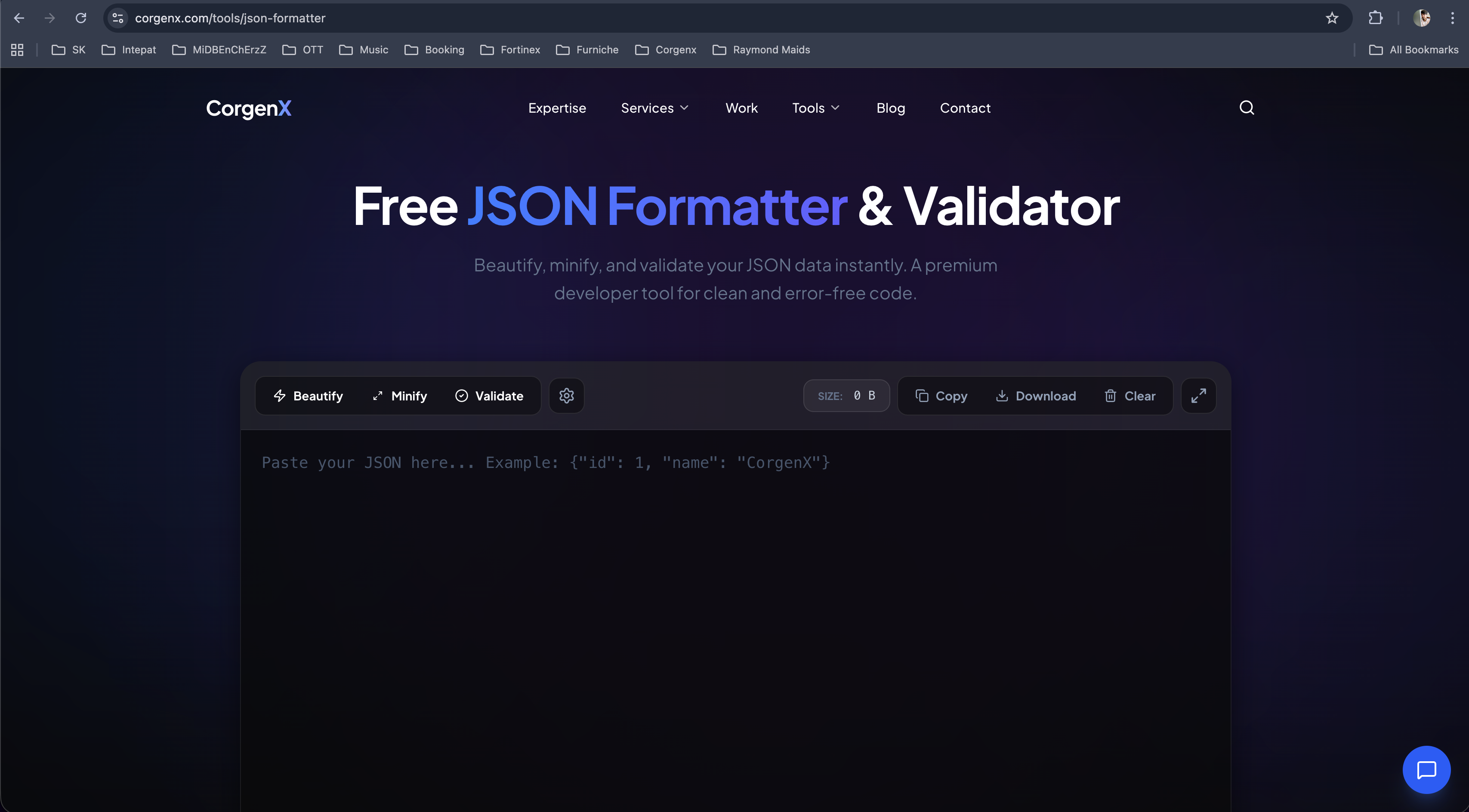 Figure 1: The CorgenX JSON Formatter — paste your JSON and get instant Beautify, Minify, and Validate results.
Step 1 — Paste Your JSON
Copy your raw JSON from your API response, log file, config file, or code editor and paste it directly into the input area.
Step 2 — Choose Your Action
The tool provides three core actions:
| Action | What It Does | When to Use It |
|---|---|---|
| Beautify | Adds indentation and line breaks | Reading, debugging, code reviews |
| Minify | Removes all whitespace | Production deployment, API payloads |
| Validate | Checks for syntax errors | Before deploying, after manual edits |
Step 3 — Read the Output
For Beautify and Minify, the formatted result appears instantly. The tool also displays the size of the JSON so you can measure compression gains from minification.
For Validate, you receive either a clean confirmation or a precise error report pointing to the problematic line and character position.
Step 4 — Copy, Download, or Clear
Use the Copy button to send the formatted JSON directly to your clipboard. Use Download to save it as a .json file. Use Clear to reset the tool for a new input.
💡 Pro Tip: Use Validate before every API deployment. Catching a trailing comma in staging costs seconds. Catching it in production costs customers.
Beautify vs. Minify vs. Validate — When to Use Each
These three functions serve different purposes at different stages of development. Here is the practical breakdown.
When to Beautify
Use Beautify whenever JSON is the subject of human review. This includes:
- Debugging an API response that returned unexpected data
- Reading a third-party API's documentation or response structure
- Code review of any feature that produces or consumes JSON
- Editing configuration files — always beautify before you touch them manually
- Understanding a new codebase — config files like
tsconfig.jsonare cleaner when formatted
When to Minify
Use Minify when JSON is the subject of machine consumption, specifically for performance.
- Embedding JSON in production API responses — every byte matters at scale
- Storing JSON in a database field — minified JSON reduces storage costs over millions of rows
- Shipping large configuration payloads — especially in mobile applications where data plan consumption matters
- Comparing two JSON blobs — minified versions are faster to diff with
===checks
A typical API response can be reduced by 30–50% in size through minification. At high request volumes, this translates directly into faster response times and lower bandwidth costs — both of which feed directly into Core Web Vitals metrics like LCP and INP that Google uses as ranking signals.
When to Validate
Validate is your final safety check. Use it:
- After manually editing any JSON file — one misplaced comma breaks everything
- Before committing config changes to version control
- When an API returns a parse error — paste the raw response to find the issue
- After receiving JSON from a third-party source — external data cannot be trusted to be spec-compliant
- When your JavaScript throws
SyntaxError: Unexpected token— paste the problematic JSON here first
How to Fix "Unexpected token in JSON at position 0"
This is one of the most Googled JavaScript errors related to JSON. It is almost always caused by one of three situations:
1. Your API returned HTML instead of JSON.
A 404 or 500 error page from your server is HTML. If your frontend tries to JSON.parse() an HTML page, it will throw this error immediately because < is not a valid JSON token. Check the network tab in DevTools to see the raw response. While you are auditing broken endpoints, it is worth running our free Broken Link Checker across your key pages — dead links and dead API endpoints often share the same root cause: stale URLs that were never updated.
2. A BOM (Byte Order Mark) character is present.
Some text editors add an invisible UTF-8 BOM character to the beginning of a file. JSON.parse() cannot handle it. Paste the JSON into our formatter — it automatically strips BOM characters.
3. Your JSON starts with incorrect quoting.
JSON must start with either { (for an object) or [ (for an array). If it starts with a single quote, backtick, or any other character, the parser fails immediately.
Real-World JSON Formatting Workflows
Magento 2 Configuration Debugging
In Magento 2, complex configurations — payment gateway settings, shipping rate matrices, and tax rules — are often stored as JSON strings inside the core_config_data table. When manually updating env.php or fixing serialized config data through the database, a single syntax error can take the entire storefront offline.
Recommended workflow:
- Extract the JSON string from the database field
- Beautify it in our formatter to review the structure
- Make your edits on the formatted version
- Validate before saving
- Minify and write back to the database
This two-minute process prevents site-down incidents that can last hours. If your Magento architecture is becoming too complex to manage safely through manual JSON edits, our web development team can help you build a more maintainable configuration pipeline.
Next.js and TypeScript Projects
Modern Next.js applications depend on package.json and tsconfig.json for build configuration. A single missing comma in tsconfig.json will break your entire build with a cryptic TypeScript error. package.json merge conflicts in version control are a common source of malformed JSON that CI/CD pipelines catch — after the fact. If you are building a Next.js headless WordPress setup, clean JSON config management is especially critical as your build pipeline grows more complex.
Recommended workflow:
- After resolving any Git merge conflict in a
.jsonfile, validate immediately - Use our formatter's Beautify mode to standardize indentation across team members
- Use Validate as a pre-commit hook check on your most critical config files
API Integration and Testing
When integrating third-party APIs — payment processors, CRMs, shipping providers — the response format is defined by the third party. Response structures are not always clean. Before writing any parsing logic, paste the raw API response into our formatter to understand the structure at a glance.
This saves the most time during initial API integration, when you are still mapping response fields to your application's data model.
JSON Formatter vs. Manual Editing: The Case Against Copy-Pasting
Many developers default to their code editor's built-in formatting. This works for files already open in the editor. But for quick, isolated checks — an API response pasted from the browser, a JSON snippet from a Slack message, a config value from a client — opening a code editor and configuring its JSON formatter adds unnecessary friction.
Our formatter is zero-friction by design: open a tab, paste, click. There is no project context, no file-type detection, no plugin required. It is the fastest path from raw JSON to readable JSON. For a broader look at developer-focused tools that save time across your workflow, see our roundup of the best AI tools for web development in 2026.
Privacy and Security: Your Data Stays With You
All processing in the CorgenX JSON Formatter happens client-side, in your browser. Your JSON is never sent to our servers, never logged, and never stored. This makes it safe to use with:
- Internal API responses containing personally identifiable information
- Configuration files with environment variable keys
- Payment gateway test payloads
- Any JSON that you would not want to paste into an external service
This is a deliberate architectural choice. Browser-based processing is faster for the user and more secure by design.
Best Practices for Working with JSON
-
Always validate before deploying. Treat JSON validation as a mandatory step before pushing any config change to production — not an optional one.
-
Use descriptive key names.
"shipping_rate_matrix"is more self-documenting than"srm". JSON is a communication format; clarity matters. -
Keep nesting shallow where possible. Deeply nested JSON is harder to parse mentally and harder to debug. If you find yourself five levels deep, consider flattening the structure.
-
Never use comments in JSON. The JSON spec does not support comments. If you need to document a config file, use a companion Markdown file or move to JSONC (JSON with Comments) for development-only configs.
-
Version-control your JSON configs. Configuration files are code. Treat them with the same review process — including validation — as your application code.
-
Use minification deliberately. Minify for production payloads. Keep the beautified version as your source of truth in version control for readability.
Frequently Asked Questions
Is the JSON Formatter free to use?
Yes. The CorgenX JSON Formatter is completely free, with no usage limits, no watermarks, and no account required.
Is my JSON data safe when I use this tool?
All processing happens in your browser. Your JSON is never transmitted to our servers. It is safe to use with sensitive or proprietary data.
What is the difference between Beautify and Minify?
Beautify adds indentation and line breaks to make JSON human-readable. Minify removes all unnecessary whitespace to produce the most compact version for machine consumption. The underlying data is identical.
Can this tool handle very large JSON files?
Yes. The formatter is built on modern browser APIs optimized for performance. It handles large files — including deeply nested structures and arrays with thousands of entries — without lag.
What causes the "Unexpected token in JSON at position 0" error?
This typically means your code received an HTML error page (like a 404 or 500) instead of JSON, or your JSON file has an invisible UTF-8 BOM character at the start. Paste the content into our validator to diagnose and fix the issue.
Can I use this for tsconfig.json or package.json?
Yes. While these files technically use JSON with slight extensions (like comments in JSONC), our formatter handles standard JSON perfectly and is ideal for validating package.json and strict tsconfig.json files.
Does the tool support JSON5 or JSONC?
The current tool validates against the strict JSON specification (RFC 8259). JSON5 and JSONC extensions are not part of that spec. For standard API responses, config files, and data payloads, strict JSON validation is what you need.
Clean Your JSON Instantly — Free Formatter & Validator
JSON is the backbone of modern web communication. Every API call, every configuration file, every data pipeline depends on it being correctly structured. A single misplaced comma or missing bracket can break a build, crash a storefront, or cause a failed deployment.
The CorgenX JSON Formatter & Validator removes that risk entirely. Beautify for readability. Minify for performance. Validate for confidence. All in your browser, all in seconds, completely free.
Ready to clean up your JSON? Use our free JSON Formatter & Validator — no signup, instant results, fully private.
Related Articles
Ready to Scale?
Our high-performance web solutions and SEO strategies are designed to deliver results.
Check out our services